
Written by
Mark - BusyBee Commerce
30 August 2026
Getting started with Phoenix Cart? This complete guide for store owners covers essential setup, products, categories, payments, shipping, SEO, security, performance, add-ons and everything you need to build a successful Phoenix Cart eCommerce store.
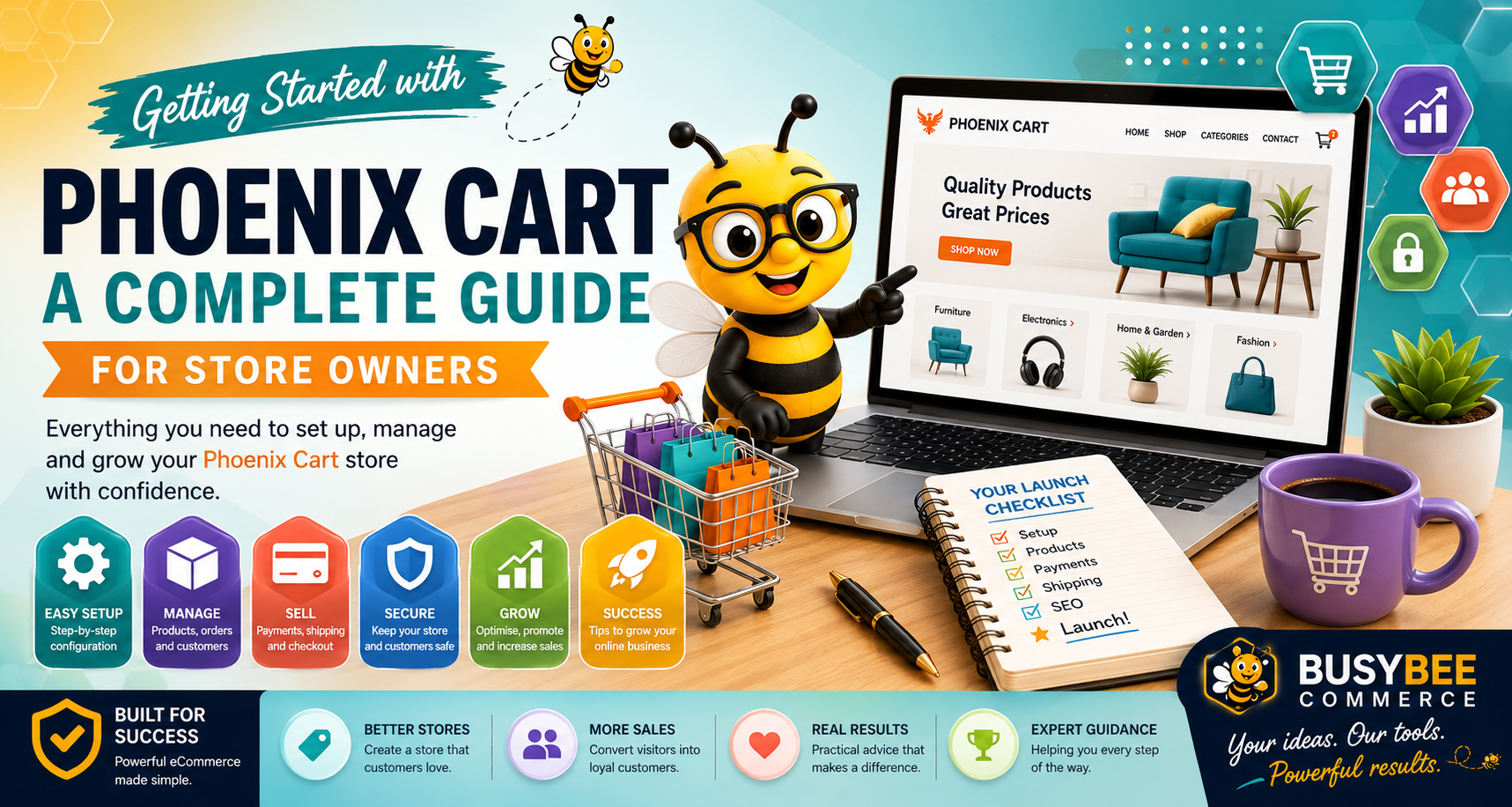
A complete guide for store owners covering the essential steps involved in setting up, organising, configuring and improving a Phoenix Cart eCommerce store.
Welcome to Phoenix Cart. Whether you are launching your first online store, replacing another eCommerce platform or taking over the management of an existing Phoenix Cart website, understanding the basics will make managing your store considerably easier.
Phoenix Cart provides the foundation needed to manage products, categories, customers, orders, payments and the many other components required by a modern online store.
This guide introduces the main areas a new Phoenix Cart store owner should understand and provides a practical route from initial setup through to operating and improving your store.
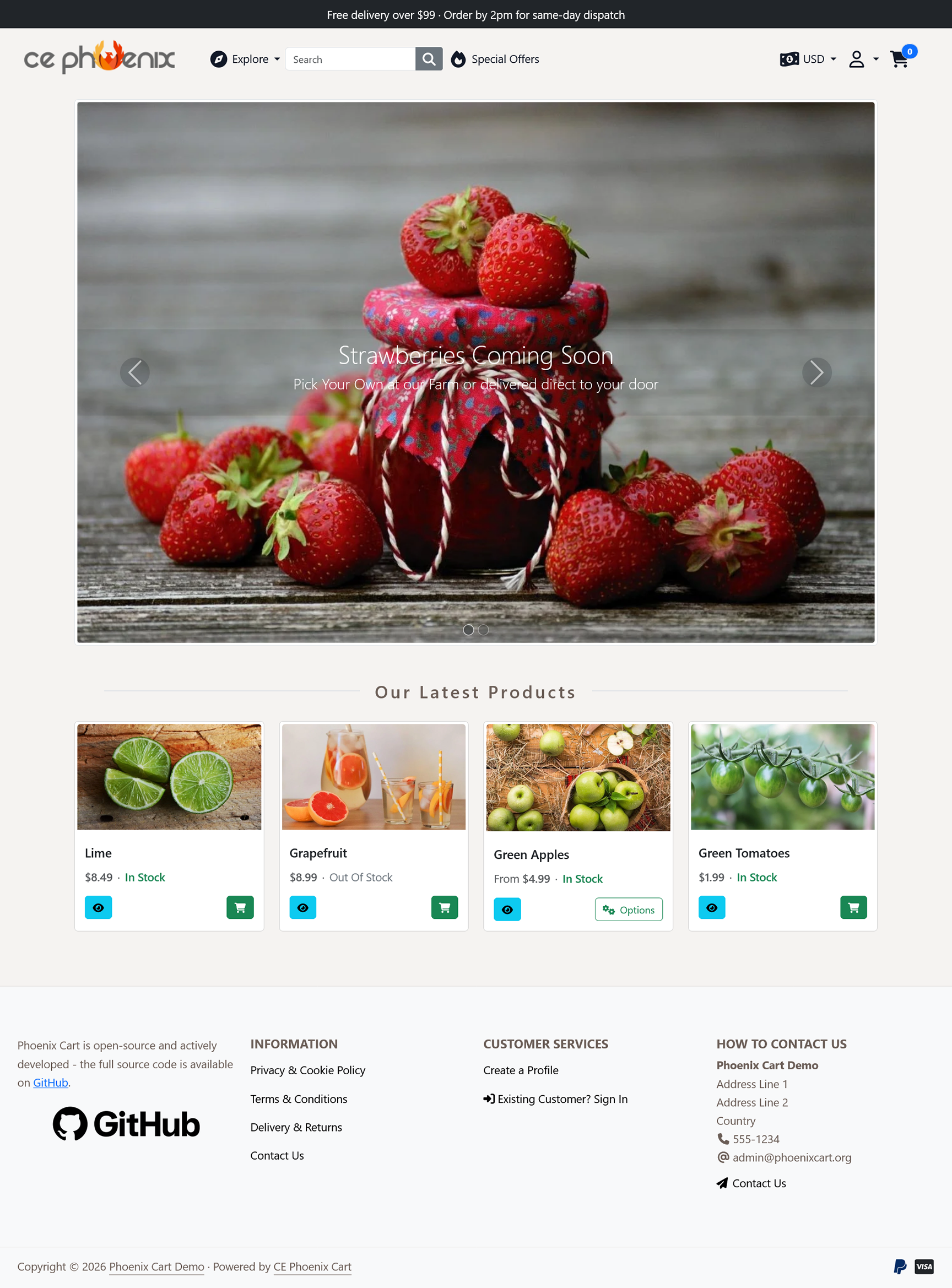
Phoenix Cart is an open-source eCommerce platform designed to provide store owners and developers with a flexible foundation for creating online stores.
It provides the essential systems needed to run an eCommerce website, including product management, categories, customer accounts, orders, payments, shipping and store administration.
One of the important advantages of Phoenix Cart is its modular approach. Many parts of the storefront can be configured or extended using modules, hooks and add-ons rather than requiring extensive changes to the underlying core files.
Create products with descriptions, prices, images and other information required by your customers.
Organise products into a logical structure that makes your catalogue easier to browse.
Receive and manage customer orders through the Phoenix Cart administration area.
Manage customer accounts and the information associated with orders.
Configure payment modules appropriate for your store and customers.
Expand your store using modules, hooks and additional functionality.
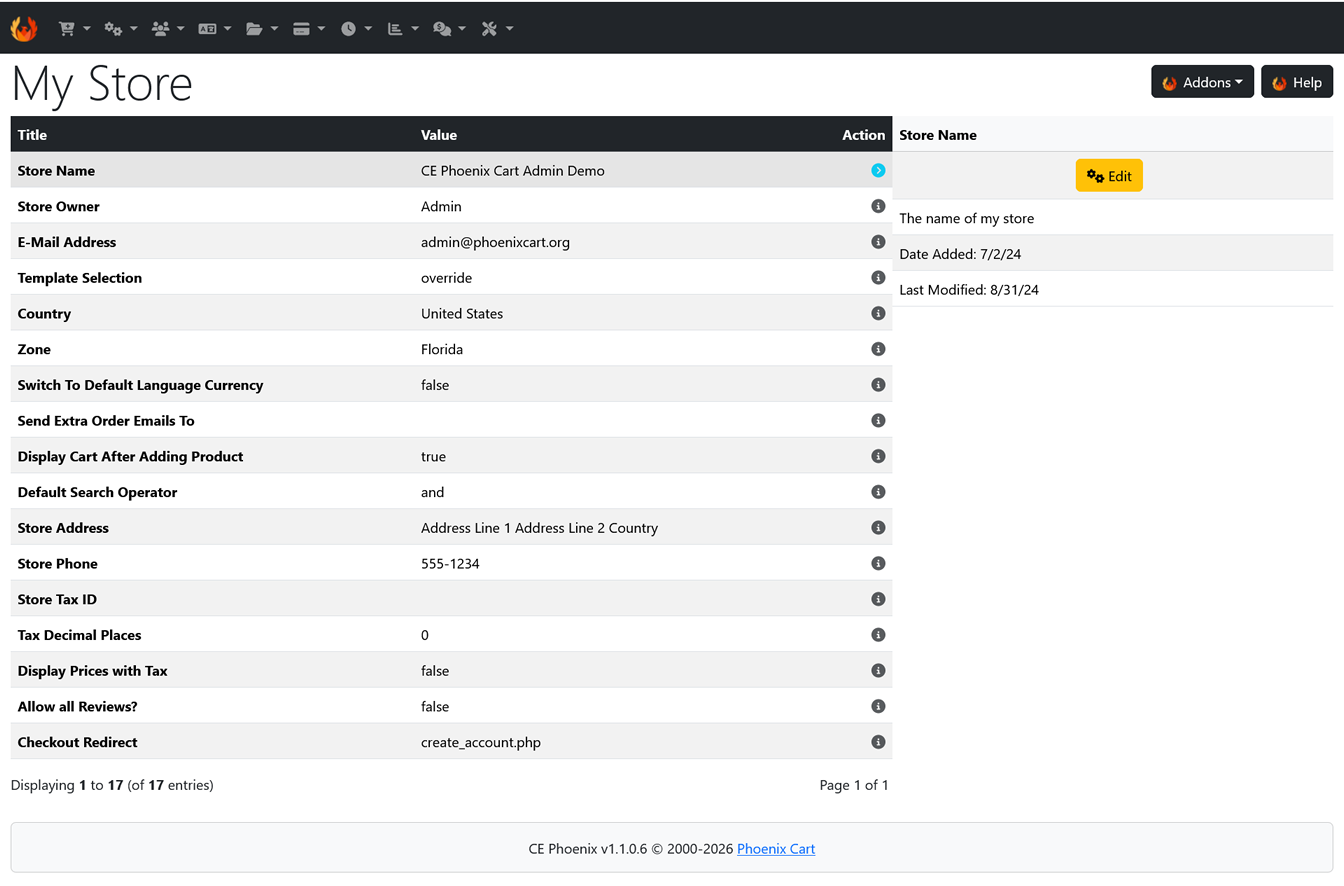
The Phoenix Cart administration area is the control centre of your online store. This is where most day-to-day store management takes place.
Spend some time exploring the administration area before you begin making major changes. Understanding where the main controls are located will save considerable time later.
Depending on your Phoenix Cart version and installed add-ons, the exact options available may vary, but the administration area typically provides access to the major areas of your store.
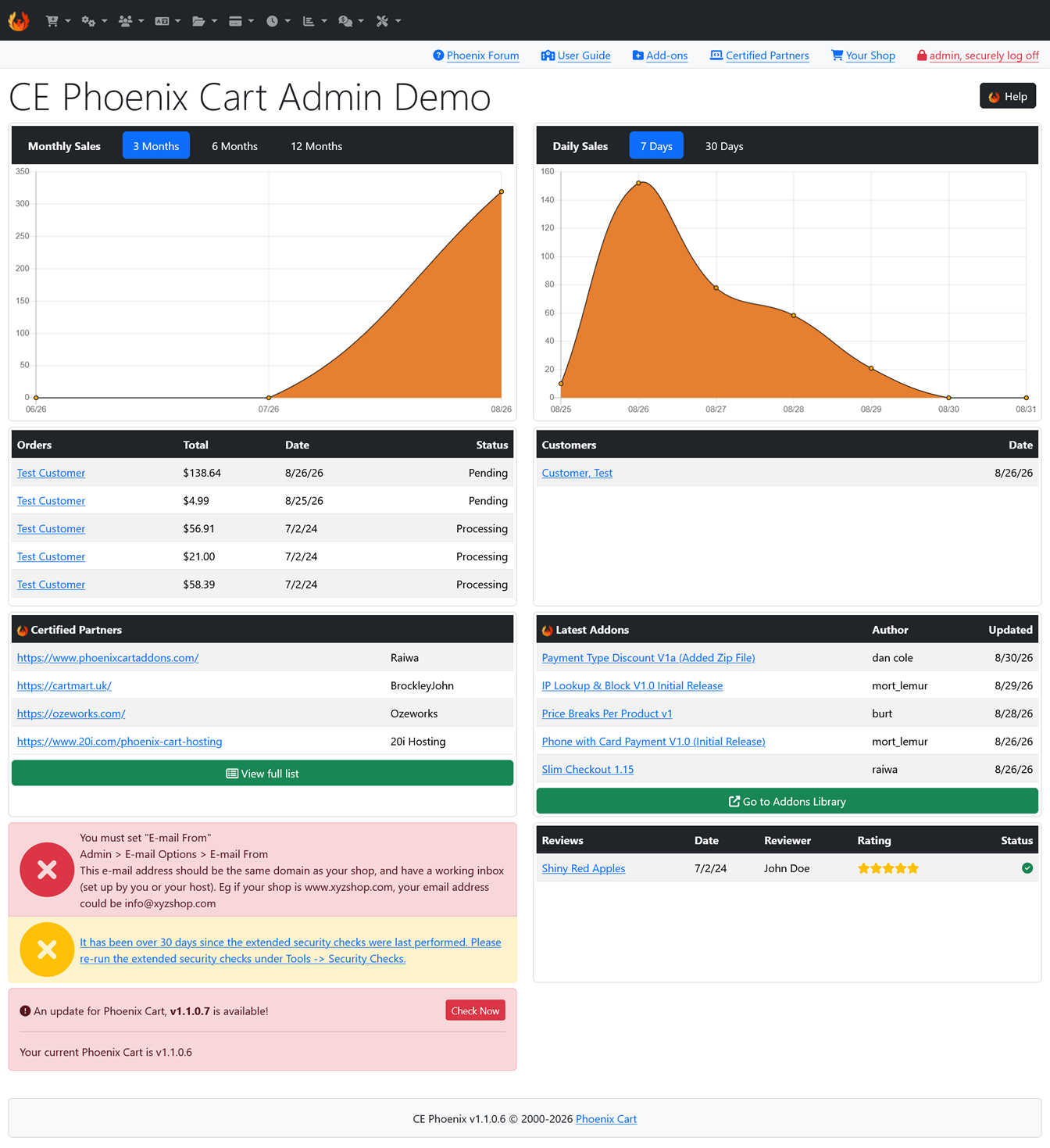
Before adding large numbers of products, make sure the fundamental store information is correct.
Your configuration provides information used throughout the store and can affect everything from customer communication to order processing.
Review details such as:
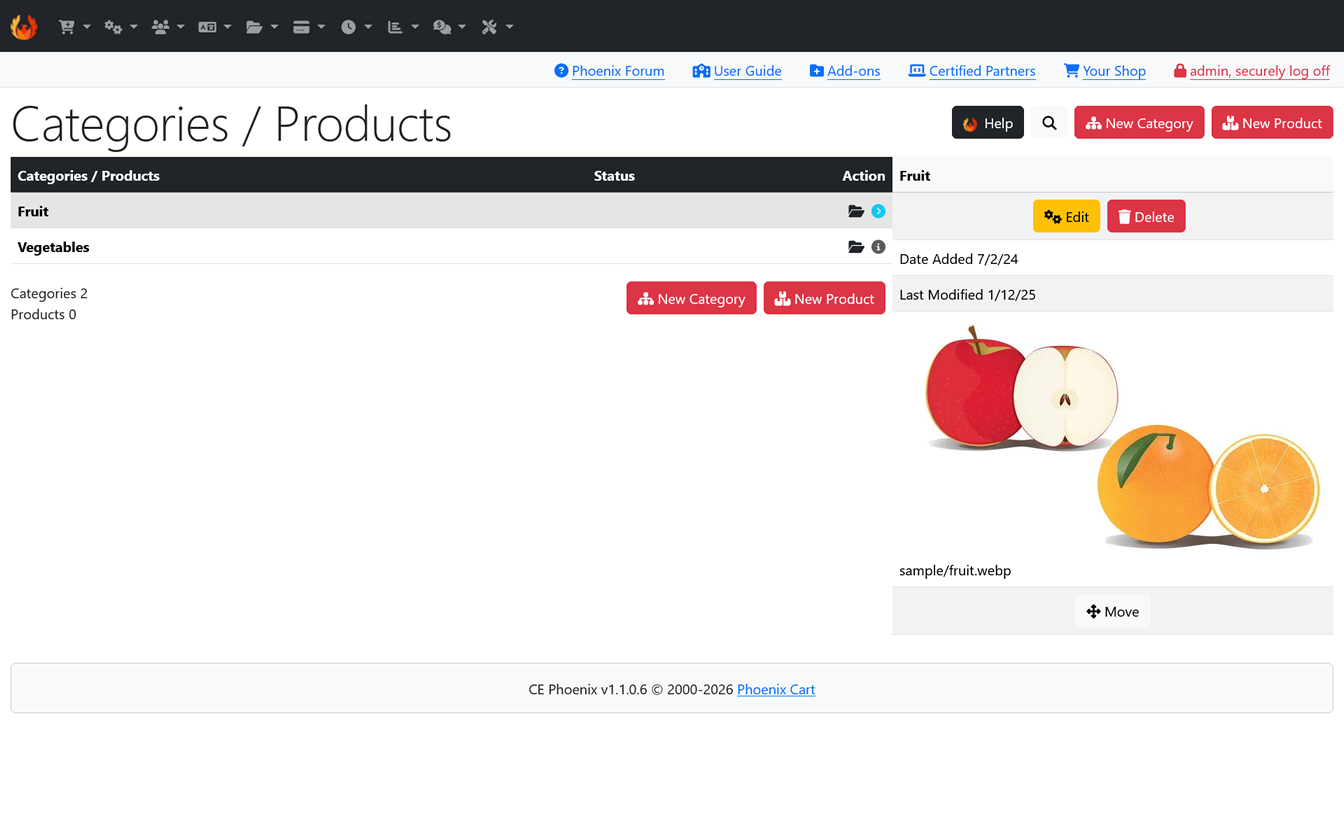
Before filling your store with products, think carefully about how those products should be organised.
Categories are one of the most important parts of an eCommerce store. They help customers navigate the catalogue and can also provide useful landing pages for search engines.
A category structure should be understandable to someone who has never visited your store before.
Avoid creating unnecessary levels of categories. Customers should be able to move from the homepage to the products they want without navigating through a complicated hierarchy.
| Main Category | Possible Subcategories |
|---|---|
| Clothing | Men, Women, Children |
| Home & Garden | Kitchen, Bedroom, Garden |
| Gifts | Birthday, Wedding, Anniversary |
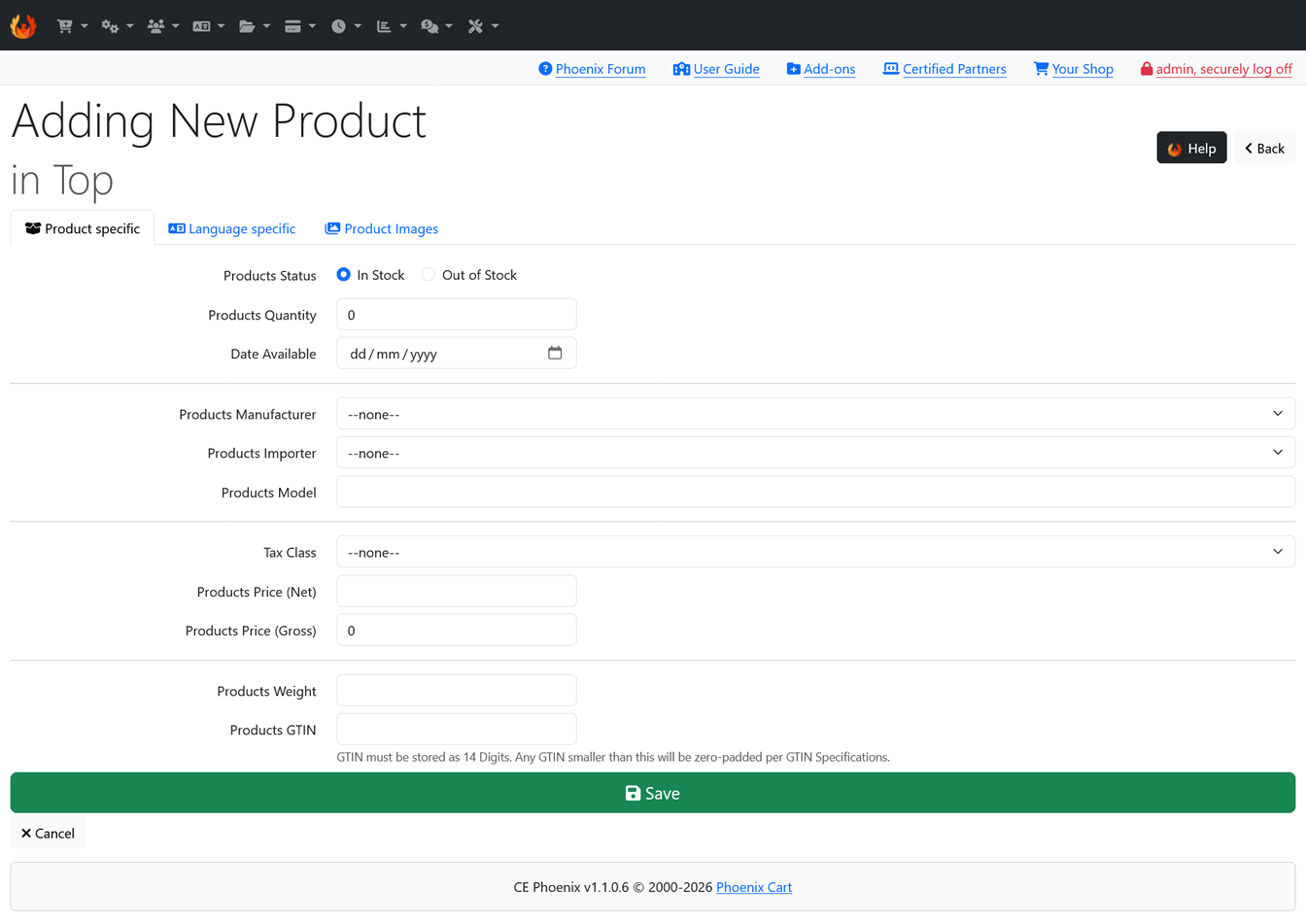
Products are at the heart of your store, so creating good product pages deserves more attention than simply entering a name and price.
Each product page should give customers enough information to understand what the product is, why they might want it and what they need to know before ordering.
A strong product page should normally include:
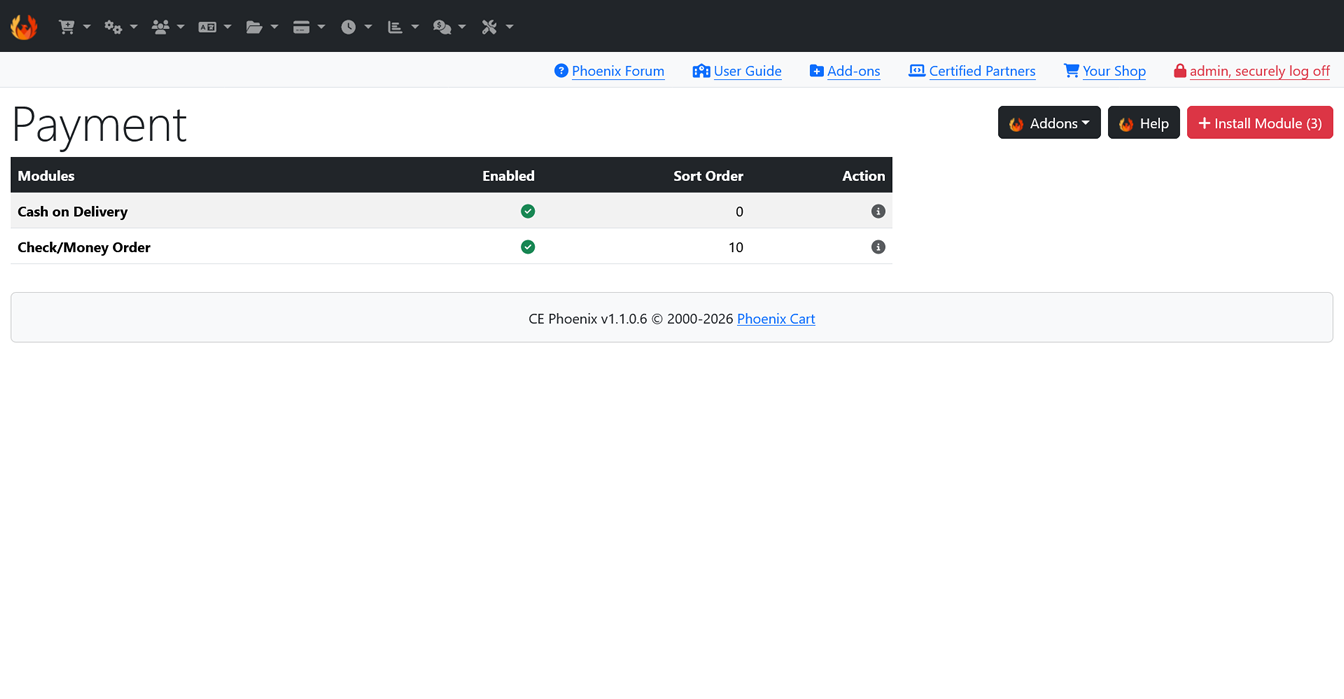
Your product description should do more than list specifications.
Customers want to know what the product does, why it is useful and whether it is suitable for their particular requirements.
Make it immediately clear what the customer is looking at.
Translate technical features into reasons the customer might value them.
Include information customers are likely to want before purchasing.
Consider dimensions, compatibility, materials, usage instructions, delivery information and anything else that might influence the buying decision.
Customers cannot physically inspect products online, which makes images an essential part of the buying experience.
Wherever possible, provide clear images that show the product from useful angles and allow customers to understand important details.
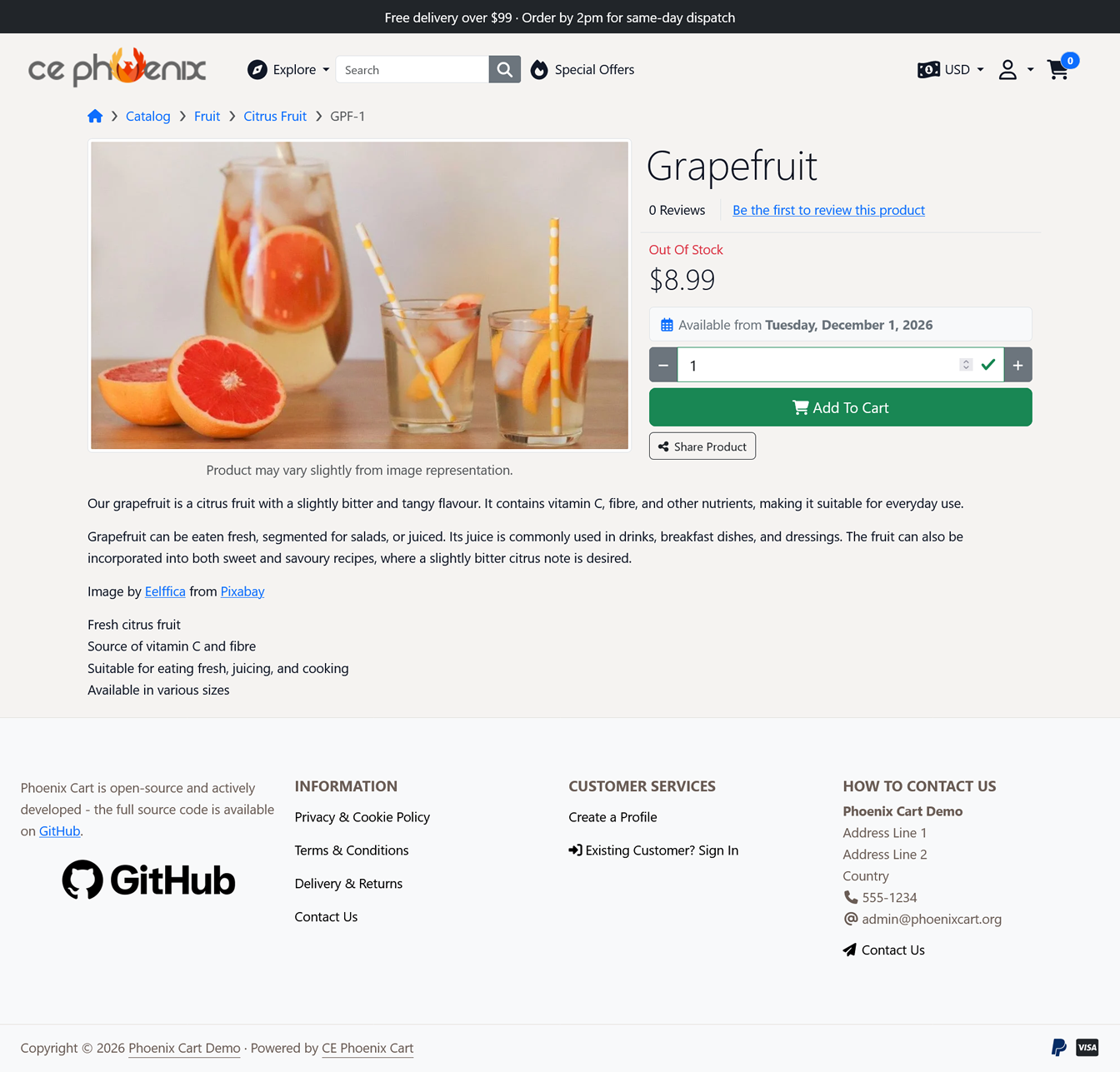
Customers need a secure and convenient way to pay for their orders.
Phoenix Cart supports payment functionality through payment modules. The exact options available will depend on the modules installed on your store.
When choosing payment methods, consider what your customers expect as well as what works best for your business.
Never assume that a payment module is working simply because it has been installed. Place complete test orders and confirm that successful, unsuccessful and cancelled payments behave as expected.
If you sell physical products, shipping configuration is another essential part of preparing your store.
Your shipping setup should accurately reflect how products are delivered and how delivery charges are calculated.
Consider:
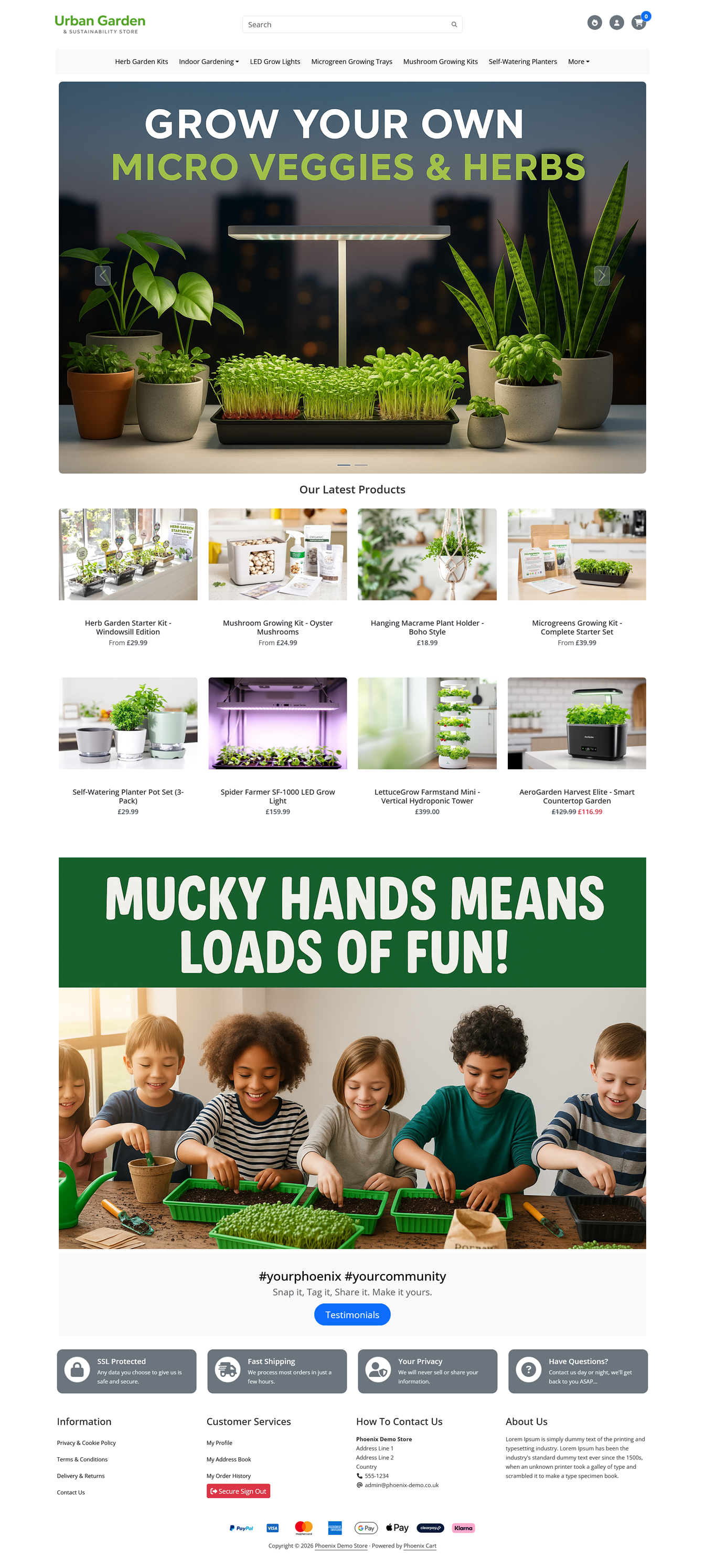
Your store doesn't need unnecessary visual effects to be effective. It does need to be clear, consistent and easy to navigate.
Look at your website from the perspective of a first-time visitor.
A significant proportion of customers may visit your store using a phone, so testing only on a desktop computer is not enough.
Open your store on a real mobile device and browse it exactly as a customer would.
Visit categories, open products, select options, add products to the basket and proceed through checkout.
Don't just resize your desktop browser. Testing on an actual phone can reveal usability problems that are much easier to miss during desktop development.
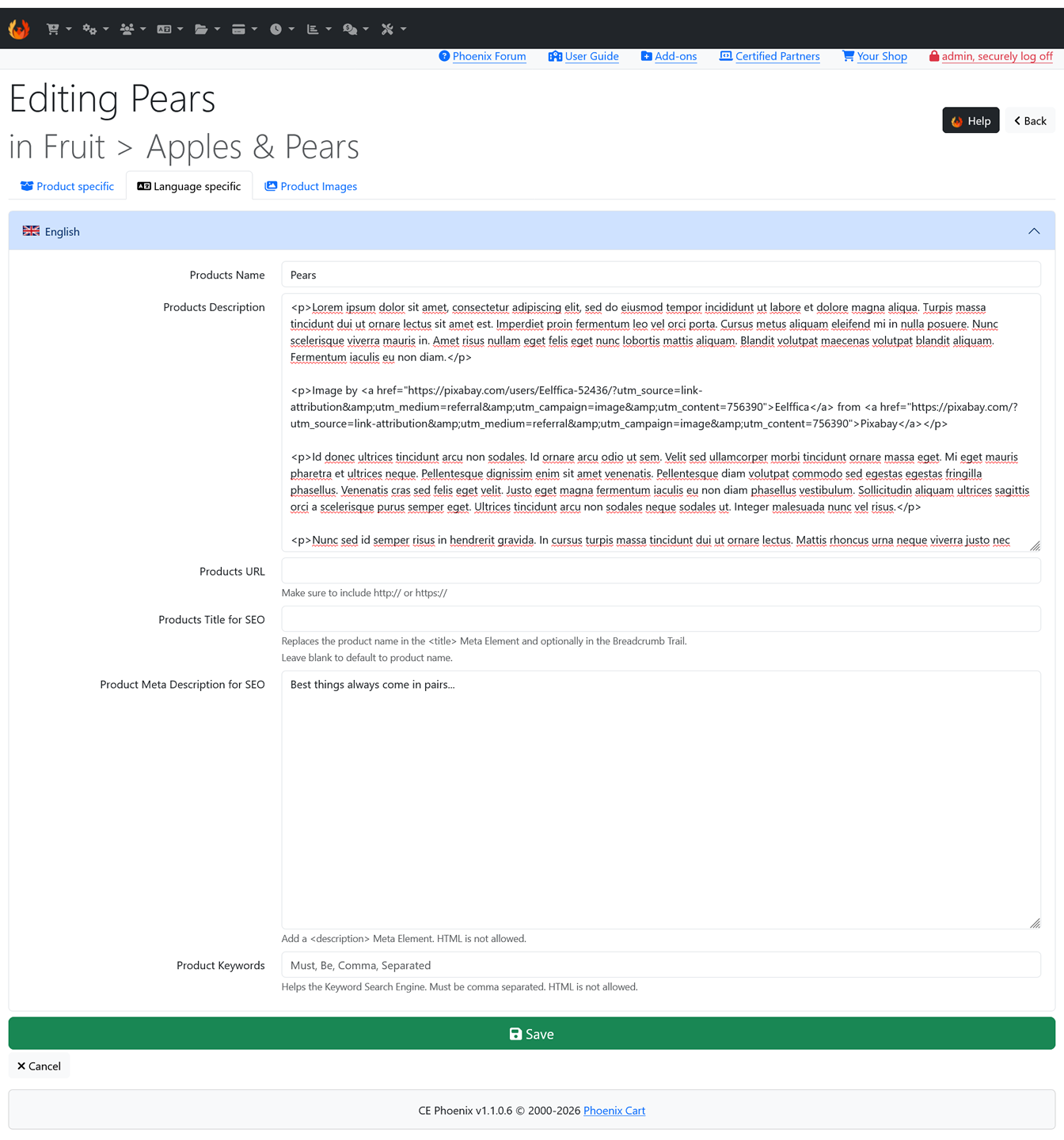
Search engine optimisation should be considered while building the store, rather than being treated as something to add later.
Begin with the basics.
SEO is not about repeatedly inserting keywords into a page. Your first priority should be creating pages that genuinely help customers understand your products.
A fast store provides a better experience for customers.
Performance can be affected by many things, including oversized images, hosting, third-party scripts, poorly designed add-ons and unnecessary resources.
Optimise images before uploading them and periodically review how quickly important pages load.
One of the strengths of Phoenix Cart is the ability to extend the store with additional functionality.
Add-ons can provide anything from small interface improvements to substantial new administration or storefront features.
Before installing an add-on, ask whether it solves a genuine problem or improves the store in a meaningful way.
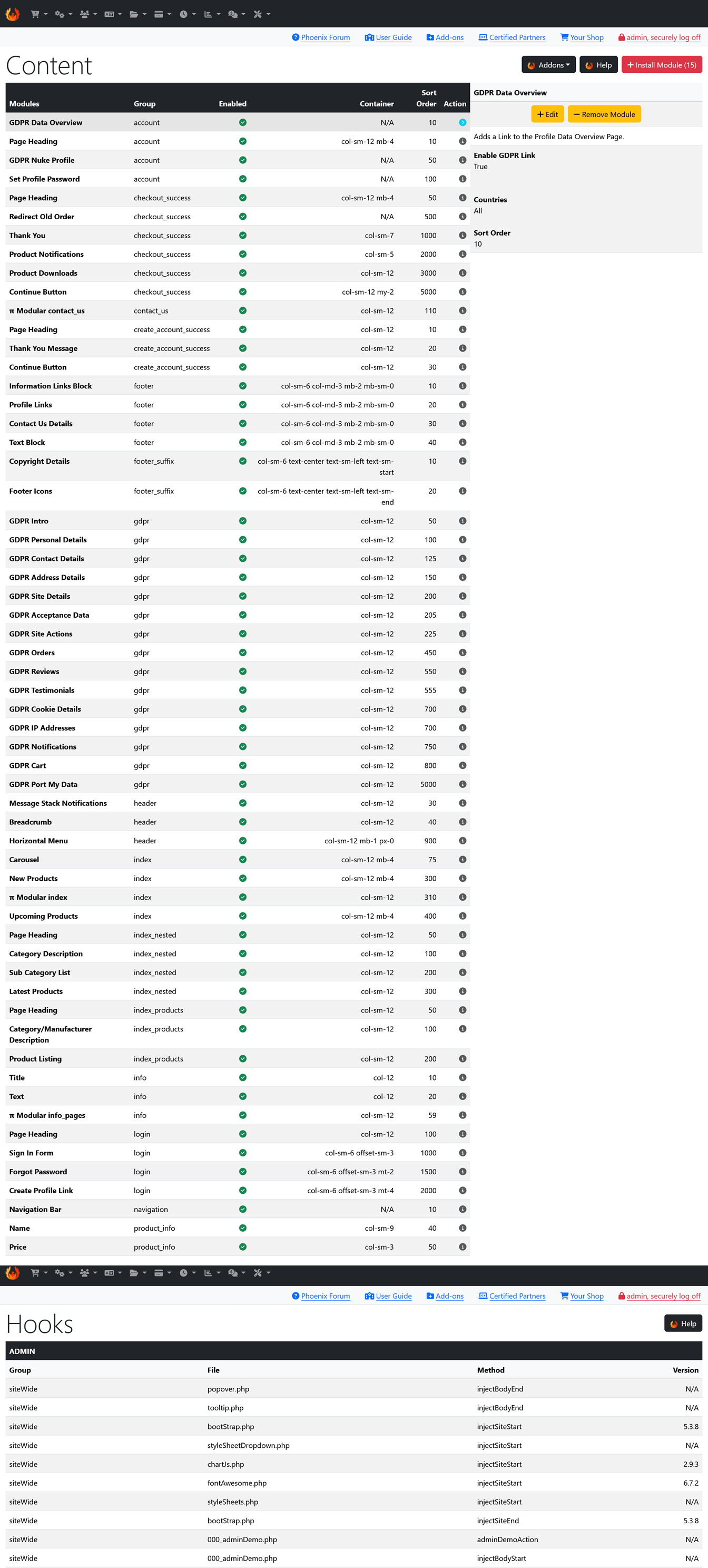
You don't need to become a developer to operate Phoenix Cart, but understanding a few basic concepts will make it easier to understand how your store has been customised.
Phoenix Cart provides modular systems that allow functionality and page content to be added in a structured way.
Hooks can also allow additional functionality to be introduced at predefined points within the application.
Why does this matter? A modular approach can make customisation easier to maintain because functionality can often be added without directly rewriting large sections of the core application.
Before launching your store, understand what happens after a customer places an order.
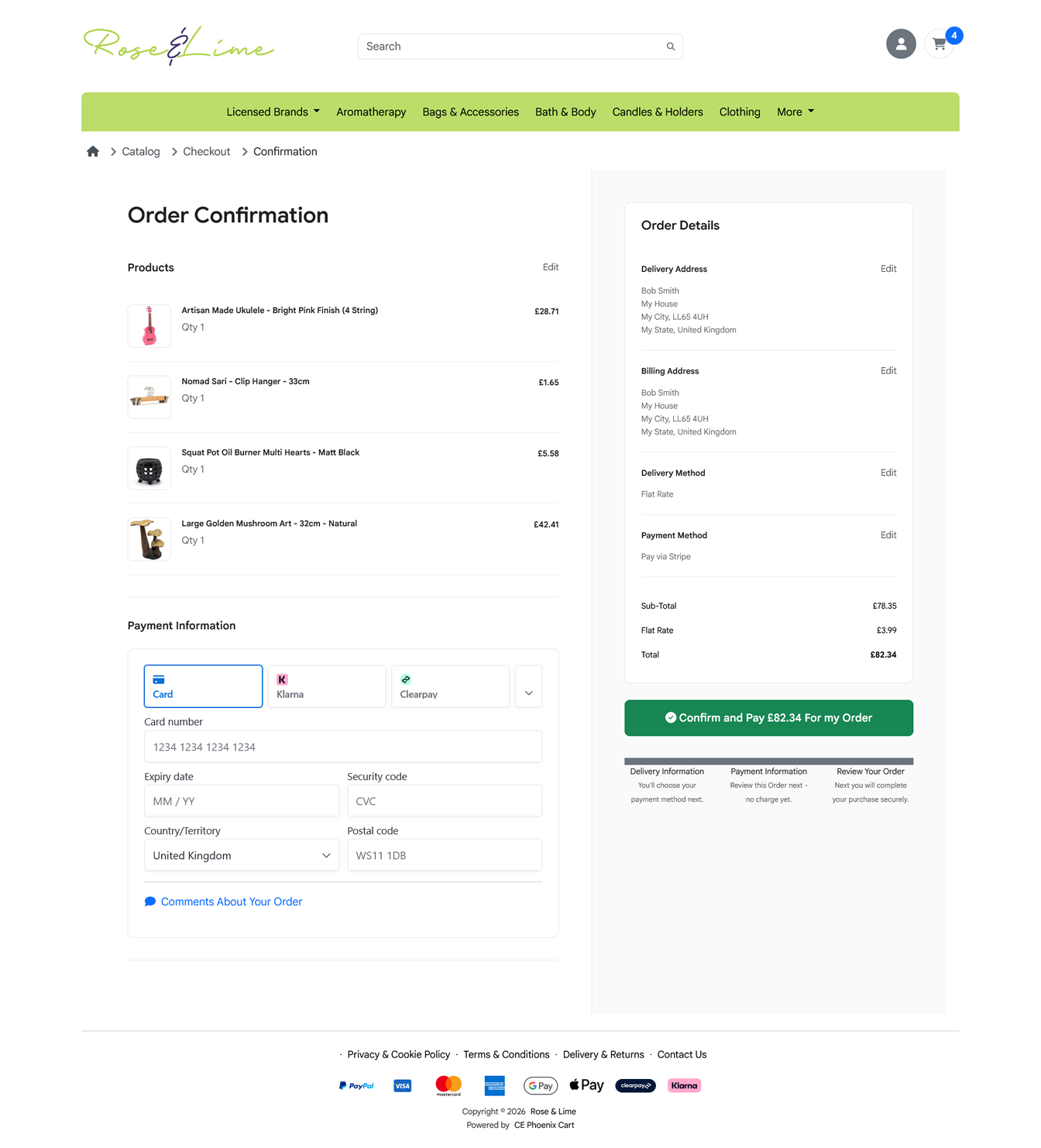
Place several test orders yourself and follow them through the complete administration process.
Complete a test purchase through the storefront.
Confirm that products, prices, customer information and totals are recorded correctly.
Learn how your order statuses and customer notifications work.
Make sure you understand the complete workflow before accepting real customer orders.
An eCommerce website handles important customer and order information, so security should be treated as an ongoing responsibility.
Your Phoenix Cart store consists of both files and database information. Losing either can cause serious problems.
A useful backup strategy should therefore protect both.
Protect templates, images, modules, custom code and other store files.
Protect products, customers, orders, configuration and other database information.
Keep backups somewhere separate from the hosting account whenever possible.
Always create an appropriate backup before significant upgrades, installations or custom development work.
Customers need access to important information about your business and how orders are handled.
The exact legal requirements depend on where your business operates and where your customers are located, so obtain appropriate professional advice where necessary.
Common store information can include:
One of the most valuable things you can do before launch is stop looking at the website as its administrator and start using it as a customer.
Browse the store without using the administration area.
Before announcing your store to customers, carry out one final review.
An online store is never really finished.
Once customers begin using your store, you will discover opportunities to improve it that were difficult to see during development.
Pay attention to the questions customers ask, the products they view, the pages they leave and any difficulties they experience.
Continue refining navigation, product pages and checkout.
Use meaningful data to understand how customers interact with the store.
Add products, improve SEO and introduce useful functionality as your requirements develop.
Add functionality because you need it, not simply because it is available.
Customers need useful information to make confident buying decisions.
Always test the complete buying process on smaller screens.
A customer should not need to understand your internal catalogue structure to find a product.
A beautiful store is of little value if customers cannot successfully complete their purchase.
Always have a recovery route before making significant changes to a live store.
Need expert Phoenix Cart development services?
Get in touch today.
0 items
No comments have been published yet.